Showing posts with label Gift. Show all posts

1.22.2015

Bringing a Cut File from Adobe Illustrator into Silhouette Studio

I was so excited when I got my first Silhouette Portrait. There were visions of projects dancing in my head, now I had a great tool to help them come to pass. 

When I first tried playing around in the Silhouette Studio I found the program a bit limiting, as far as being able to create my own unique projects. Adobe Illustrator is a program I have been using for years, some for school and some just for fun, and so I was much more familiar with it and believe I can do so much more {design wise} with it. Now the trick is figuring out how to get those AI files into Silhouette Studio to cut.

There is a plug-in that can be purchased now but I got familiar with this technique before that was available, and this way is free, so I will just keep doing this technique.


MATERIALS/SUPPLIES
Cardstock to fit the size of your cutting machine

TOOLS
Computer

Silhouette Machine
Adobe Illustrator {I am using CS5}

INSTRUCTIONS

Make sure your artboard in Adobe Illustrator is the same size as the cutting board in Silhouette Studio {ie. 8.5" x 11" or 12" x 12" etc.}. Create an image using a line weight of 1 pt, making sure not to double and triple your lines. It can get tricky doing a project with so many curves, if the design is kept simple it will transfer over to Silhouette Studio more easily. I would recommend playing around with a couple of shapes first: ie, circle, square, triangle etc.

Once the design is created it is time to get it ready and export from Adobe Illustrator.
  • Make sure to save your file  ex. ~ Hearts Cut Lines.ai
  • Clean up your file and remove everything except the line{s} you want transferred to Silhouette Studio to be cut.
  • On a different layer create an outline of the entire artboard area {ie. 8.5" x 11" or 12" x 12" etc.}. This will force the image to be placed on the cutting board area in the exact location it is in from the artboard area {Illustrator} when transferred to Silhouette Studio. This box will also help check that everything is proportionate once brought into Silhouette Studio.


To export:
  • File --> Export to save your image as a DXF file {AutoCAD Interchange File}
Settings:
  • AutoCAD Version: 2004/2005/2006
  • Click "Scale Line Weights"
  • Artwork Scale 1 inch = 1 inch {this is what keeps your art work the right size}
  • "True Colors"
  • "Raster to PNG"
  • "Preserve Appearance
  • No other options should be selected.
  • "OK"


Merging your DXF file into Silhouette Studio

Merging Preferences:
Click on "Silhouette Studio" in the top bar, from the drop down menu choose "Preferences". The menu will open to the right of your cutting area. 

*If using a PC "Preferences" will be found under the "File" drop down.

Settings:
  • General ~ Unit of Length = inches; Dimensions = click
  • Defaults ~ default fill style = outline only; Blade Type = cap blade
  • Import Options ~ When Importing DXF = centered, make white lines black, join lines into polylines
  • Click on "Apply"


To Merge:
  • File --> Merge; select your DXF file you created in the previous step


Your lines should appear centered on the cut area in Silhouette Studio. By selecting the outline created in Illustrator that outlined the work area, you can make sure that the scale stayed true. Simply select it and check the measurements, ie 8.5" x 11" or 12" x 12" etc. If it's all correct, then go a head and delete it.

If your lines don't show up after merging them, try zooming out. I have found that a lot of times I may have missed a simple step and when the DXF file comes in, it is HUGE and you have to zoom way out to see it! Just go back to Illustrator and export again and double check all the settings.

If there is any last minute finagoling that needs to happen, now is the time.

Then simply cut like normal.

The original post I got all this wonderful information from can be found here. They talk about how to create a print image in Illustrator and cutting it with a Silhouette after printing it.

Next I will put together a tutorial with simple techniques about designing in Illustrator for when it will be transferred into Silhouette Studio.

Here are some other projects I have done using this technique.


If you have any questions on this tutorial, please leave me a not in the comments. I would be happy to help you be able to create your projects any way I can.

1.07.2015

Two Ingredient - Super Moist Pumpkin Cookies

I have gotten into a baking mood lately but with Paul being so busy with work and two little girls who get all my attention, there is not a whole lot of time to spend in the kitchen.

I found the remedy for that. Cake box cookies!!!


These are so easy to make, very moist and work great when an extra surprise is tossed in {craisins, chocolate chips, nuts, etc.}.


Add some cream cheese frosting and a craisin on top to dress it up a bit.


White chocolate chips are a family favorite here. When the chips melt and caramelize a little, well, it’s just simply delicious.


INGREDIENTS
Duncan Hines Spice Cake Mix
One can {15 oz} Pumpkin
Any additions {craisins, chocolate chips, nuts, etc.}

*You can also double the recipe if you need more and they turn out great as well

SUPPLIES
Cookie sheets
Baking mats
Hand Mixer or Wooden Spoon

INSTRUCTIONS
Preheat oven to 375 degrees. Place baking mats or parchment paper on cookie sheets.


Mix the spice cake mix with the pumpkin. Once it's completely mixed, it will be sticky, add any extras you want. I didn't measure specifically but I usually added about 1 C -1 1/2 C of white chocolate chips. It just depends on your mood.


Drop table spoon sized balls onto the cooking mat and bake for 11-13 minutes {depending on your oven}. I usually flatten them out a little because they don't really spread out as they bake. When I first started making these I would poke with a toothpick to make sure it came out clean.


Yum!

Another bonus to cake box cookies is the amount it makes. Usually I can get around 3 dozen snack sized cookies that will last us a week or so…..you know, as long as I don’t make them when I’m hungry and eat most of the first batch.


I would love to hear from you and see your projects. Leave a comment or #AlwaysCreate on your photos. Find me on Instagram {@AlwaysCreate} and follow along for behind the scenes and fun little extras.

4.18.2014

Sharpie Marker Easter Plate

Do you remember me sharing on Instagram that I keep some designs that would normally be weeded out on transfer paper until I can use them in another project? Well, that is what I did with this bunny.


It is time to try the hot trend of a Sharpie Marker on a dollar store dish...again. I have tried this over and over again and all those claims of the dishes being dishwasher safe and the marker is permanent ~ well, that has never been the case for me. Just using dish soap and water has always taken the Sharpie marker off. Here goes another attempt.

I used the bunny silhouette saved from my Peter Cottontail burlap decor piece to create this plate. Originally I was going to use a couple different colors but ultimately decided to go with straight black on white. Remember, the dollar store dishes {or cheaper dishes from Wal-Mart and other stores} will work best because the glaze on them is thinner and will help in the baking process.


Use rubbing alcohol and a cotton ball, wipe down the dish to clean and remove any dust or oils.

Because this image used a pom-pom for the tail I had to improvise and find something to create a tail. Lady A loves stickers and we have a few of these sticker packets on hand for her. So I used one that  looked like it was the right size...and am pretty pleased with myself for my quick improvisation.

Now take the Sharpie marker and start dotting around the image.


Bake the dish in the oven by placing it on a cookie tray. With your dish in the oven set it to 425 degrees, once the temperature is reached bake it for 30 minutes. Let the oven cool and prop the oven door open with the dish still in it. 

Letting the dish warm up and cool down with the oven will help to keep the shock of the temperature changes from cracking the dishes. One of the perks is that the paper stickers on the bottom of the dishes were baked off so I didn't have to put any effort into removing them.


I love how this turned out! It will be fun to bring it out year after year and remind us of this time in our lives, as we wait for Lady #2 to join our family, as our lives change with Paul graduating and we get ready to move. We have a lot going on this Spring.


***MY IMAGE STAYED AFTER WASHING***

I attribute it mostly to the higher baking temperature, every tutorial I read said to bake at 350. It should also be noted by washing I mean with warm water, a washcloth and soap and no scrubbing ~ just lightly going over the surface to wash it off.

Tips from this project:
  • Rubbing alcohol will help the marker make better contact to the dish.
  • I called Sharpie and they do not recommend using dishes with this Sharpie technique for food or drink. The markers are not food safe according to the USDA.
  • An acrylic spray can be used to cover the dish and will help keep the images from fading or washing away {remember not to use the dish for food with an acrylic coating}.
Check out my Peter Cottontail  post for the Silhouette Studio file where you can find this bunny.

4.15.2014

Some Bunny Loves You ~ Easter Thank Yous

It has been some time since I last posted. While I have still been working on projects it is blogging about them and sharing with all of you that has suffered. I am telling you, this little girl needs to get here quick, these last few weeks have not been enjoyable at all....and I would really like to get back to sleeping in my bed instead of the recliner.

That is enough about that ~ onto the fun Easter Projects I have been working on.

This one is a little 'Thank  You' for Lady A's nursery teachers. They have been so great! She loves showing us her pictures and getting us to sing the songs she has learned, I think it is because she mostly likes the hand actions that go along with them. Her teachers were also very patient with her as we went through potty training. I would not say she was difficult but she did have one or two accidents and it was hard to get her to sit up on those monster sized toilets at the church.

These were super cheap to make and even if you made more of them, say for the moms in a reading group, they would still be very reasonable.

Supplies:
Glass Jars $1 at Target
Two PDF downloads from here
Hot glue
Buttons from my stash {optional}
Pom-Pom {two sizes} from my stash
Jelly Beans {$2}
Twine/ribbon


I found the easiest way to clean the labels of of these jars is to let them soak in hot water. Give it about ten minutes then the label will just rub right off. Make sure they have time to dry before placing the candy inside and assembling the bunnies.

Cut out the ears and tag {I used an EKSuccess punch to give a little style to the tag}. If you have a scrap piece of white felt on hand you could also use the print out as a pattern and cut the ears out of the felt to make them soft and fuzzy. I tried having Lady A color some pink inside the ears but that turned in to a disaster so we just went with white.

Hot glue the small pom-pom to the front neck of the jar for the nose and the large on to the bottom back for the tail. Hot glue the eyes above the nose on the neck of the jar {optional}.

If you do paper ears, fill the jar with treats first, then hold the base of the ears down into the jar a bit and place the cork. This will keep the ears in place and won't require any gluing. 


Now take some ribbon or twine and tie the 'Some Bunny Loves You' tag around the jar. 

TaDa!!! Cute and simple. 


I like to reuse cute little jars like this and so that is why I choose to use hot glue. If the ladies wanted to they could easily remove the pom-poms and eyes and save the jar. 

If you leave the bunnies out you might come to find that the jelly beans will start to disappear so be sure to stash them away until it's time to give them away.

I did one with eyes and one without so you could see how they both look. Myself, I think I like without.


3.17.2014

Burp Cloths out of Cloth Diapers ~ Tutorial

These burp cloths are the best. Since they are made from cloth diapers they are SUPER absorbent. But carrying around a cloth diaper is not all that cute so we dress them up with a bit of fabric and ribbon.

What you need:
Cloth diapers
Ribbon
Fabric Scraps
Rotary Cutter and Board {or Scissors}
Sewing Machine
Thread

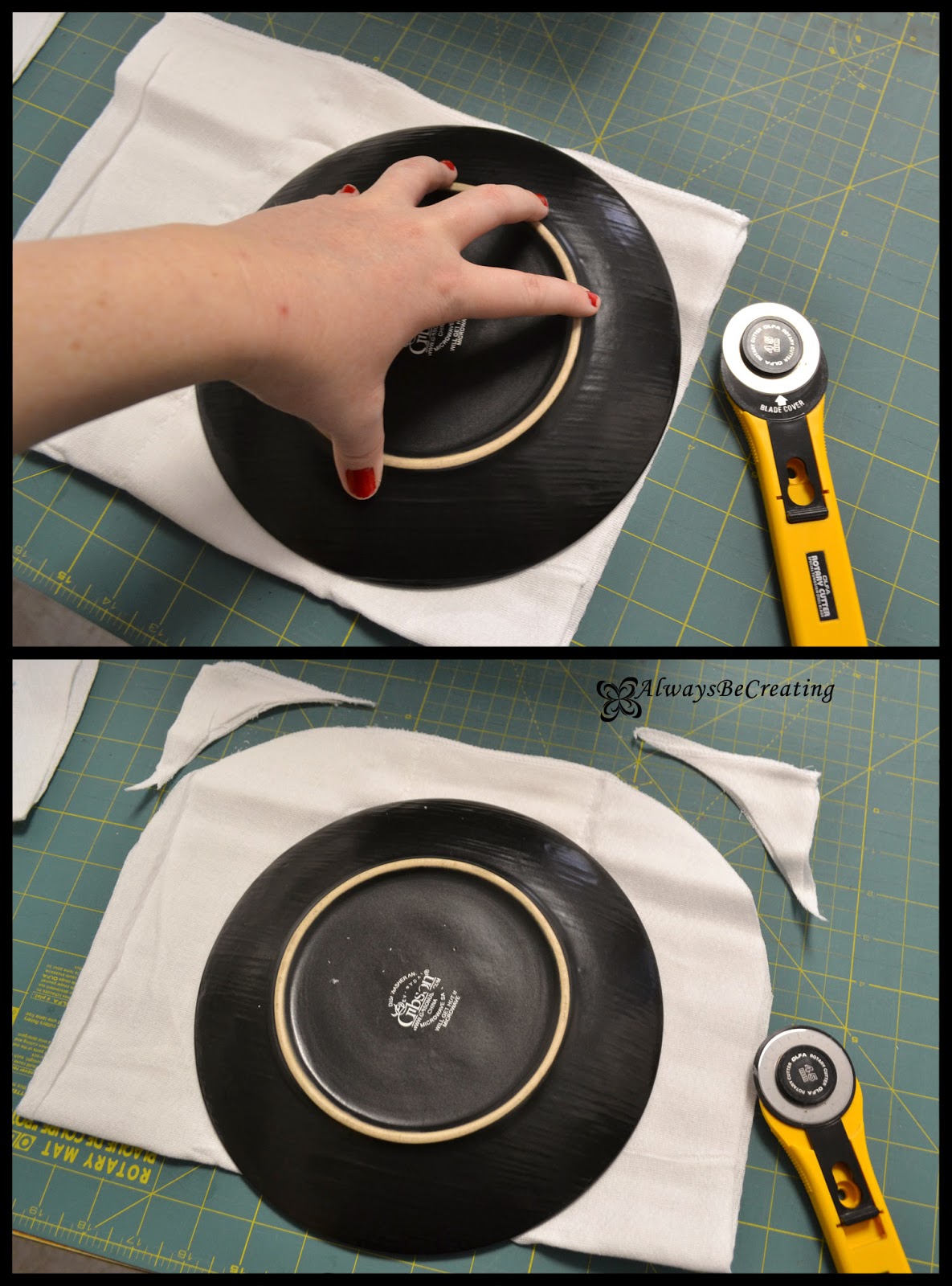
To add a little bit of style I round the corners using a plate or bowl. Just line it up where you want it and zip around the corner to trim.


Now add the ribbon. The center of the cloth diaper {the extra padding and stitch lines} are not always centered on the cloth diaper so simply use a clear ruler to help in drawing some straight and even lines as a guide for where the ribbon will be placed.


After I got the ribbon in place I folded the cloths in half and laid them on top of each other to make sure they were all lined up together and looking good.

When sewing the ribbons down I also like to use a contrasting color for the thread and use the serpentine stitch to add a little more design and character to the burp cloth.


Now add the binding around the burp cloth to give it a nice, fun and soft finish. You can find my tutorial for binding here.

And now they are done. As simple as that and a very absorbent burp cloth for all the messes the new little one can make.


Do not forget to enter the Spring Birthday Wish Giveaway. Ends midnight {est} the March 20th.

6.10.2013

Love Notes Picture Frame ~ Take Two


I love when I finish a project and get to share it with all of you. These frames turned out great and were so simple to put together.

Two more family wedding presents. I was holding out for the right frames and wouldn't you know that I found the perfect ones at Wal-mart for $3!

 
What you need:
Frame
Photo
Pattern Paper {card stock works great}
Spray Mount
X-acto knife and/or Scissors
Metal Ruler
Cutting Mat
Masking Tape
Dry Erase Marker

The frame advertises that it has spots for two 4"x6" photos, that's a lie, it is 3.5"x 5.5". I already had my 4x6 photo picked out and ready to go so I had to cut the opening a bit but no biggie.

Spray mount the front of the cardboard mat and place face down on the back side of your patterned paper.
{American Crafts - Take Note - Pink Pearl}
{American Crafts - Classic Calico - Frequency}

*Tip: I held the cardboard mat and patterned paper up to the window {kind of like a light box affect} and marked roughly where I wanted it to line up.

Cut off the excess around the cardboard mat and cut out the opening where you want the photo to go.

*Tip: On the wrong side I marked the four corners for the photo opening by making little cuts with the x-acto knife. Then on the right side I used the metal ruler as a guide to make a nice straight cut for the photo opening.

It looks a little low tech but I used masking tape to place the photos. This would hold it nice and tight and I wouldn't worry about a liquid glue warping the material as it soaked in. This will also allow the couples receiving these frames to change out the photos without worrying about ruining the cardboard mat.

They are done and wonderful! A good sign that they are perfect is when I want to keep them for myself instead of giving them away.

I used an image transfer technique that you can find here.


Go Create!!
Mindy

LinkWithin

Related Posts with Thumbnails